
Read reports and manage report notifications
Reports help you catch up on personal or space activity. Daily AI team reports and performance statistics are Business features; available reports depend on your workspace setup.
Open a report
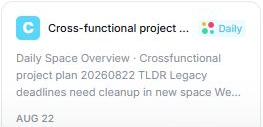
- Go to Home and find Latest reports.
- Check the card's source, date and short preview.
- Select the report to read it in the report panel.
- Follow up on relevant tasks or conversations to confirm the details and decide what needs attention.
The latest available report can be older than today. Opening Home does not guarantee that a new report has just been generated.
Turn a summary into useful action
Check who owns the next step, whether the deadline is still correct and whether a decision has changed since the report was created. Update the original task or document so teammates can find the outcome.
AI summaries can omit or misinterpret information. Use the report as a starting point and check the underlying work for important decisions.
Adjust delivery preferences
Open notification and email preferences in settings and find Reporting or the report-related controls. Review in-app notifications and emails separately, then apply the preferences you want.
Delivery preferences control how you hear about reports. Turning off an email notification should not be treated as disabling the reporting agent or deleting existing reports; review the agent's configuration separately when that is your goal.
If a report is missing
Check the workspace and space, Business access, reporting configuration and the date of the latest available report. If you expected an email, also check the relevant email preference and spam folder.
Related: AI agents and team setup.
Read this guide in another language: Deutsch · Español · Français · Italiano · Português
Updated on: 05/10/2026
Thank you!