
Review and restore document and task-description versions
Version history lets you revisit saved editor content in a Doc or task description. It is available on Business.
Preview an earlier version
- Open the Doc or task whose editor content you want to review.
- Select the history control.
- Browse the saved versions and select one to preview.
- Read the preview before deciding whether to restore it.
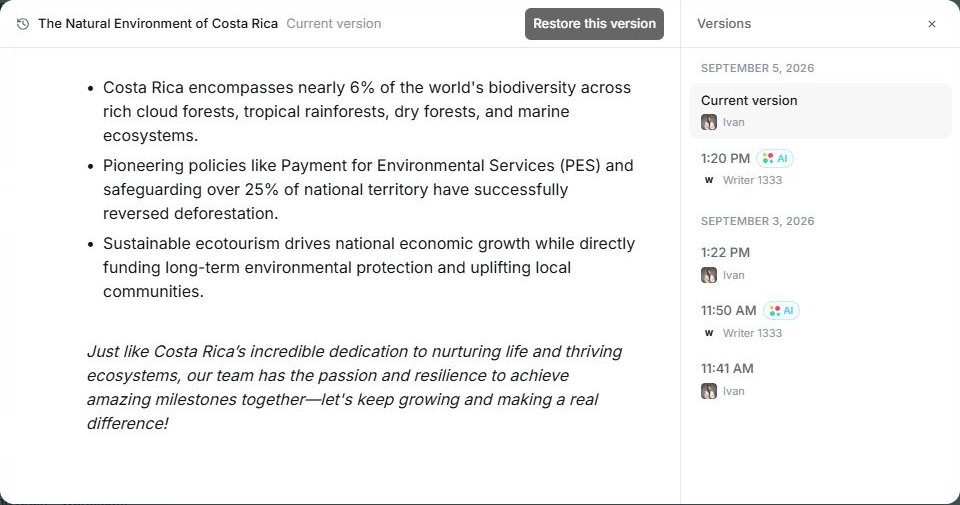
Versions are captured automatically around editing sessions. The history distinguishes AI edits from other changes. A newly created or unchanged item may not yet have earlier saved versions.
Restore content
Choose Restore this version when you want the selected content back in the editor. Confirm that the resulting content is the version you intended.
Coordinate with teammates before restoring a shared document. Preserve any newer text you still need, because restoration changes the editor's current content.
Understand the scope
This history covers document content and task descriptions. It is not a complete audit log of task state, due dates, assignments, attachments or chat messages. Use the appropriate task fields or conversation when investigating those changes.
If history is empty or unavailable
Check Business access and whether the item has saved versions. Confirm that you opened the intended Doc or task. Wait for active edits to save before checking again.
For a missing task field or message, restoring description content will not solve the problem; review the original work item or contact support with its details.
Related: Docs and collaborative editing.
Read this guide in another language: Deutsch · Español · Français · Italiano · Português
Updated on: 05/10/2026
Thank you!