
Import Word documents into Edworking Docs
Convert a supported .docx file into an editable Edworking Doc when you want to continue writing with your team.
Import a document
- Open Docs in the destination space.
- Open the Docs menu and choose Import Doc.
- Select the Word .docx file and follow the import prompts.
- Read any warning about content that could not be imported.
- Open the resulting Doc and review it before sharing or editing further.
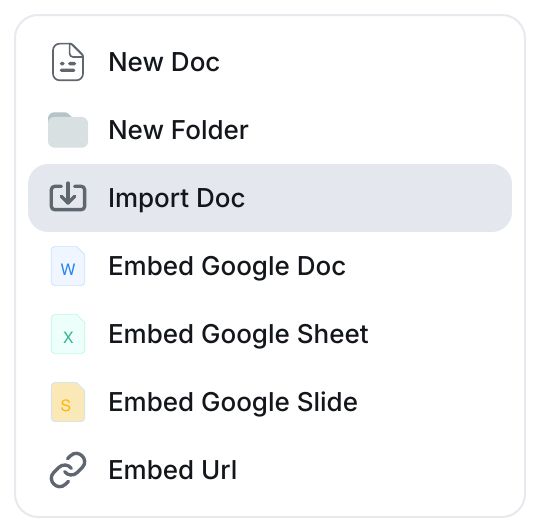
Workspace document limits and permissions still apply. Keep the original Word file until you have checked the conversion.
What to check afterwards
The importer supports common paragraphs, headings, lists and tables, including basic bold and italic formatting. Drawings, macros and multi-column layouts are not imported.
Compare the title, heading order, numbered lists, table contents and important figures with the original. Recreate unsupported material manually if it is needed. An editable conversion is not a guarantee that Word's page layout will be reproduced exactly.
Preview or import?
Opening a Word attachment in the file viewer gives you a preview where supported, with a download fallback. Import Doc creates editable document content. Choose the preview when you only need to review the file; choose import when you want to collaborate on its text.
If import fails
Check that the file is a valid .docx, that you can create Docs in the destination space and that the workspace has capacity. Try a simpler copy if the original relies heavily on unsupported layout features.
Related: Docs, file previews and collaborative editing.
Read this guide in another language: Deutsch · Español · Français · Italiano · Português
Updated on: 05/10/2026
Thank you!