
Set up and use the Writer AI agent
Writer helps turn notes into clearer drafts, structured documents and summaries. It is available on Business.
Create and configure Writer
- Open the Agents area.
- Choose to create a Writer and review its configuration.
- Explain the audience, type of writing and style your team needs.
- Review the available task, document, summary and scheduling settings.
- Save the configuration and open Writer's chat.
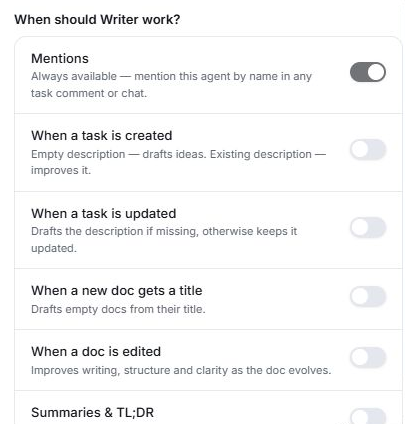
Where agent mentions are supported, you can also mention Writer by its configured name.
Give it a focused writing task
Provide the relevant source and describe the result. For example:
“Use this project note to write a short update for the team. Separate decisions, risks, open questions and next steps. Keep names and dates unchanged and flag anything unclear.”
Writer can help improve wording and structure, or summarise key points. Review its output against the original material before sharing it. Ask it to clarify uncertain points rather than filling gaps with assumptions.
Use scheduled updates carefully
Writer includes configuration for scheduled updates. Before enabling one, confirm the source context, frequency and intended output. Start with a narrow request and check the first result before relying on recurring updates.
If the result is not useful
Check that Writer has the relevant context. Specify the audience, desired length and sections, and explain what should remain unchanged. Review the agent's settings if it repeatedly works outside the intended scope.
If Writer is unavailable, check Business access and your permissions to create or configure agents.
Related: AI agents and AI writing in Docs.
Read this guide in another language: Deutsch · Español · Français · Italiano · Português
Updated on: 05/10/2026
Thank you!