
Set up two-step verification for your Edworking account
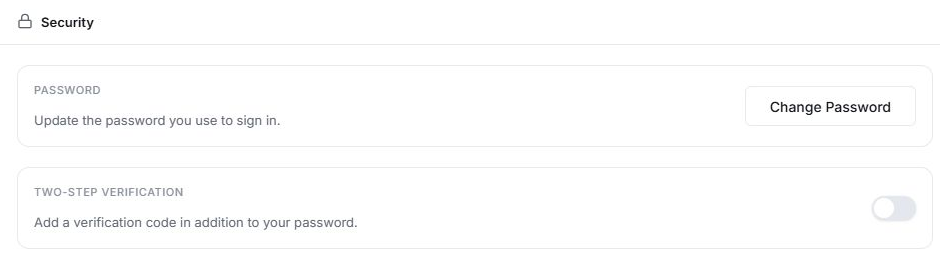
Two-step verification adds a code from an authenticator app to your sign-in process.
Prepare your authenticator
Use an authenticator app you can access when signing in. Set aside a secure place for recovery codes before beginning setup.
Turn on two-step verification
- Open your account settings and select Security.
- Start the two-step verification setup.
- Follow the on-screen instructions to link your authenticator app.
- Enter the current six-digit code from the app to confirm the setup.
- Save the recovery codes securely when Edworking displays them.
Recovery codes are single-use and are shown only once. Keep them private and separate from the device that holds your authenticator, so they remain available if you lose that device.
Sign in afterwards
Complete the normal sign-in process and enter the authenticator code when prompted. If you cannot access the authenticator, use an unused recovery code through the recovery option offered by the sign-in flow.
Never send an authenticator code, recovery code or password to another person or paste it into a public document.
If a code is rejected
Check that you selected the Edworking entry in your authenticator and entered a current code. Make sure the device's time is set correctly, then try a newly generated code. A recovery code that has already been used cannot be reused.
If you cannot use either method, contact Edworking support for the available account-recovery process. Password changes also have a dedicated place in Security.
Related: getting started and workspace roles.
Read this guide in another language: Deutsch · Español · Français · Italiano · Português
Updated on: 05/10/2026
Thank you!