
Understand workspace roles and member access
Workspace roles separate administration from day-to-day collaboration. The fixed roles are Owner, Admin, Member and Guest. Role assignment is a Business feature.
Compare permissions
Open workspace settings and select Roles. Review the permission table before deciding which role someone needs.
- Owner: has full workspace access, including workspace deletion.
- Admin: manages members, billing and workspace settings.
- Member: works in spaces and creates content.
- Guest: has limited access to the spaces they are invited to.
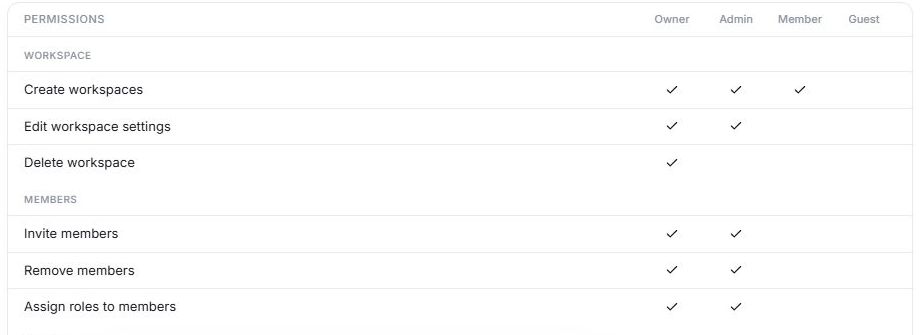
Use the current Roles table for the exact permissions. A workspace role and membership of a particular space are separate things.
Change a member's role
- Open Members in workspace settings.
- Find the correct person and review their existing role.
- Use the available role control to select the intended role.
- Save or confirm the change as prompted.
- Review the resulting role and the person's space access.
You must have permission to assign roles. Give each person the access needed for their responsibilities, especially when inviting clients or external collaborators.
Before removing access
Review owned tasks, documents and ongoing responsibilities. Arrange a handover where needed. Removing a member, changing a role and deleting a workspace are different operations; read the action's confirmation carefully.
If a person cannot open work
Check that they accepted the invitation with the correct account and joined the relevant space. Then compare their role with the permission required for the action. A copied internal link alone does not grant access.
Related: team setup and public board sharing.
Read this guide in another language: Deutsch · Español · Français · Italiano · Português
Updated on: 05/10/2026
Thank you!