
Plan with Day, Week and Month calendar views
Expand the calendar when you need more room to compare commitments, review deadlines or plan the coming week.
Choose a view
- Open the dashboard calendar and select its expand control.
- Choose Day, Week or Month.
- Move to the dates you want to review.
- Use the visibility controls to choose which calendars and work items appear.
- Select Today to return to the current date.
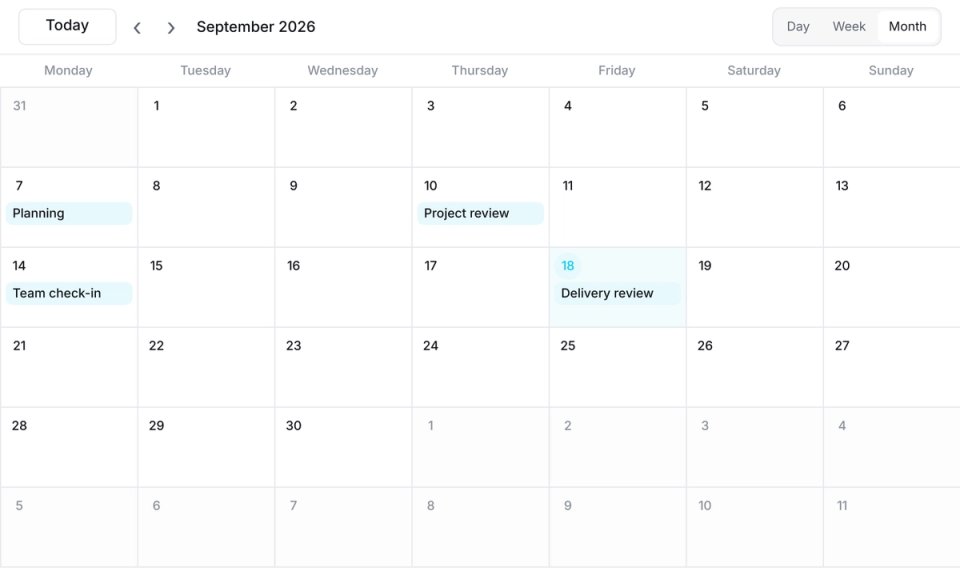
Day is useful for detailed planning. Week helps compare timed commitments across several days. Month gives a broader view of upcoming dates; a busy day can contain more events than fit in its cell.
Read the schedule
Timed events have more room in Day and Week views. All-day events are displayed separately. Open an item to check its details rather than relying only on the calendar label.
The agenda also supports continuous scrolling through days, so you can review upcoming commitments without repeatedly reopening dates.
Check timezone and teammate context
Set your timezone in profile preferences and review event times when working across locations. A teammate's profile can show Active tasks and Calendar tabs where supported, helping you understand their work context.
Calendar visibility is not a substitute for confirming an attendee's availability or acceptance. Review the event's participants and response information.
If something looks wrong
Check the selected calendars, date range and timezone. For external Google events, review the connected account and calendar selection in sync settings. Open the source event when you need to change its details.
Related: Google Calendar sync and calendar basics.
Read this guide in another language: Deutsch · Español · Français · Italiano · Português
Updated on: 05/10/2026
Thank you!